
Pokémon Survivor Burst Controls and Menus
Arrow movement, auto-attacks, leaderboard shortcuts, Kecleon prompts, and the Options menu that actually matters on slow hardware.
Pokémon Survivor Burst plays like a Vampire Survivors-style bullet heaven running inside Pokémon Essentials 21.1. You are not mashing a face-button combo list. You move, the Pokémon auto-attacks, and you spend the mental budget on positioning, level-up picks, Burst timing, and not walking into a dense projectile lane. This page documents the labels that appear on the real UI screens—Choose Pokémon, Leaderboard, Kecleon Shop—plus the Options menu added in version 2.5. It does not invent extra key names that are not on those screens.
If you have not installed a build yet, use the download guide first. After the title screen, the getting started walkthrough is the better first-hour route; come back here when a menu prompt is unclear or the frame rate falls apart.
Movement and auto-attack
In a run, movement is RPG Maker-style: arrow keys (or the equivalent d-pad) walk your Pokémon across the field. Attacks fire on their own once the kit is active. Your job is to stay in range of experience pickups, slide around boss telegraphs, and keep enough space that a Burst does not get you killed during the wind-up. There is no separate “confirm attack” key for the basic loop.
Because the engine is Essentials / mkxp-z, window focus matters. Click the game window if arrows suddenly do nothing. Do not bind the same key to a system overlay that steals input. If you play with a controller, map it at the OS level; this wiki will not invent an in-game binding screen that the Options menu does not show.
Positioning is the skill. Fast Pokémon such as Mudkip (Speed 2.32 on the select screen) forgive sloppy kiting. Slower unlocks demand earlier turns. When the swarm densifies, you are steering a hitbox, not aiming each Water Pulse. Burst ultimates are a separate system—see the Burst guide—but they still assume you can walk out of leftover enemy fire.
Choose Pokémon screen
The select screen is where you inspect a fighter before a run. The on-screen prompts are Scroll, Details, Leaderboard, and Save. Scroll moves the cursor through the roster you have unlocked. Details is the important one: it is how you read HP, Speed, the listed attacks, and passives such as Mudkip’s Water Pulse and Damp Recovery without guessing. Leaderboard jumps to scores for comparison. Save stores the current choice so you are not re-hunting the same Pokémon every boot.
Use Details on every new unlock before you take it into Rush. A sprite you recognize from the main series is not a kit you understand. Regional branches and mid-run evolutions can change what that Pokémon wants to stack; Details is the pre-run version of that information. If a Pokémon is greyed out, it is still locked behind an in-run challenge—track those on the unlock checklist rather than mashing Scroll looking for a cheat toggle.
Leaderboard screen
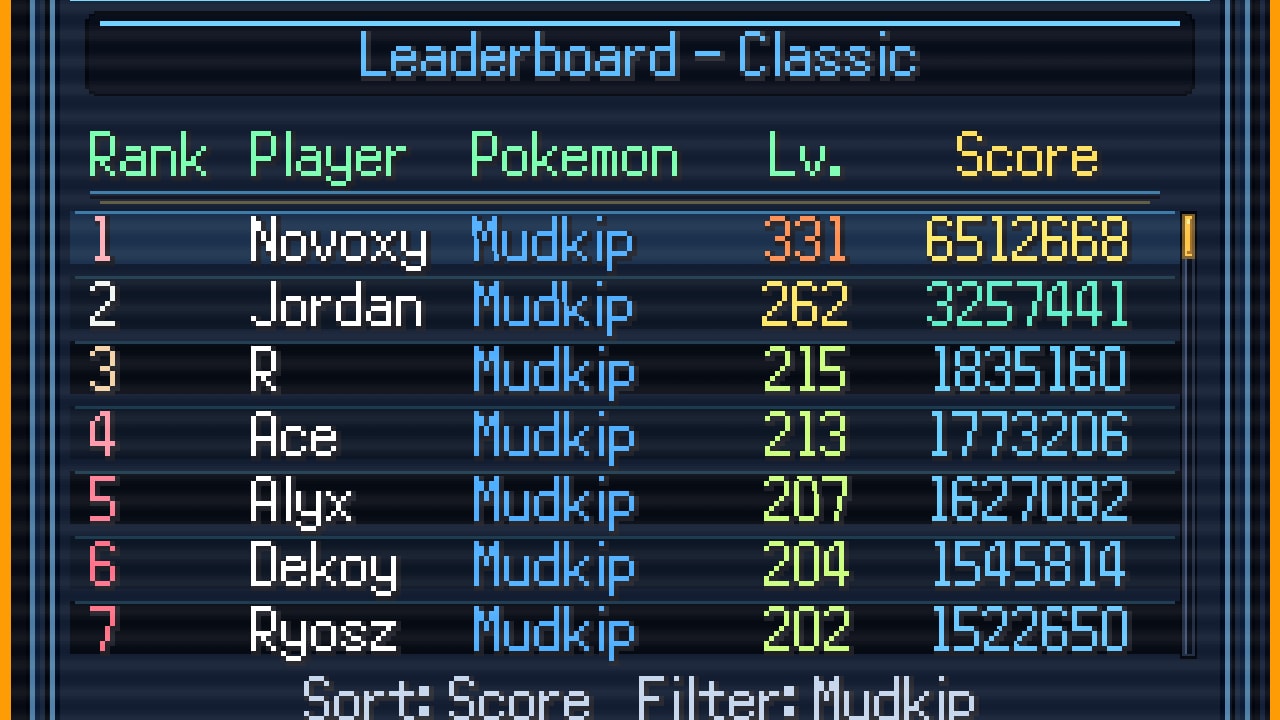
The in-game board is a score browser, not a lobby. Prompts on that screen are Mode, Scroll, Sort (D), Filter (W), and Back (C). Mode switches which ruleset you are viewing. Scroll moves the list. Sort on D changes the sort (the 3.0 patch added score and level sorting, plus sorting for personal runs). Filter on W narrows the list by Pokémon. Back on C leaves the screen.
Those letter keys are the labels on the desktop UI. They are not secret debug codes. If you came from a different survivor game, do not expect F5 for refresh or a ping button. Results submit after a run; version 2.5 optimized that submission path. When the in-game board was down, players still used the web leaderboard. The leaderboard tool on this wiki points at that page.
Filter is how you study a specialist. If Mudkip owns Classic, Filter to Mudkip and read times and levels instead of assuming every top name used the same build. Sort by level when you care about how far a run scaled, and by score when you care about the published ranking. Mode must match the ruleset you actually play: a Tower time is not a Classic time.
Kecleon Shop prompts
Between runs, Kecleon sells permanent roguelite upgrades, not a one-run snack. The shop UI shows Core, Next Buy, Hide Details, and Close. Core opens the Shop Core tree. Next Buy highlights the upgrade you are about to purchase so you do not click the wrong node. Hide Details collapses the text when you already know the tree. Close leaves the shop.
Complete the standard upgrades to unlock more of the tree; do not expect every node on day one. Fragments (including an extra fragment for finishing Tower) and Star Pieces feed this layer of progress. Economy details sit on the evolutions and shop guide. Controls-wise, the mistake is treating Kecleon like a pause-menu item shop you can open mid-wave. Finish or fail the run, then shop.
Endless Mode in 4.5 has a separate shop and a separate currency. Do not look for Endless goods on the normal Kecleon Core list, and do not spend Endless currency trying to buy a missing Core node. Mode context decides which wallet is legal.
Options menu and performance
Version 2.5 added an in-game Options menu specifically so you can manage resource usage on the device you are playing. That matters because this is a projectile-heavy Essentials game, not a lightweight browser toy. If the swarm turns into a slideshow, open Options before you assume the build is corrupt. Lowering demanding toggles there is the supported path; closing every other application is the unglamorous second step.
Later patches kept stacking performance work: 2.0 mentioned overall optimization, 2.5 improved rendering, 3.0 redesigned UI/HUD and improved performance again, 4.0 rebuilt graphics and HUD. If you are on an old folder, you may be fighting a problem a patch already fixed. Confirm the version on the updates hub before you spend an evening in Options.
Fullscreen versus windowed, and whatever resource sliders the menu exposes, are the levers. This page will not invent a “shadow quality” setting that is not documented. If a toggle is in Options, it is fair game. If it is not, do not download a config file from a stranger.
Mobile and untested input
Mobile is an official download target and is not fully tested. Compatibility is not guaranteed. On a phone or tablet you may lack physical D, W, and C. Use on-screen buttons if the port shows them, or a Bluetooth keyboard if you are forcing the mkxp-z build to run. Expect missed prompts, extra latency, and thermal throttling. The download guide is explicit that mobile can fail outright.
If touch mapping is clumsy, play Classic only until you can consistently move without eating contact damage. Rush’s denser 15-minute layout and Tower’s reworked difficulty are poor places to debug input. Endless is worse: you need stable movement for a long session, not a five-minute experiment.
A short practice drill
Spend one Classic run touching every menu on purpose. From the title screen, open Options and note which resource settings you changed. On Choose Pokémon, hit Details on two different fighters and Save one of them. During the run, only use arrows—no extra “attack key” hunting. After the run, open the Leaderboard, press D to Sort, W to Filter, and C to Back. Then open Kecleon, look at Core, tab Next Buy without spending if you are unsure, Hide Details, and Close.
That drill does more than a keybind screenshot because it uses the real labels. When a patch reworks the HUD (3.0 and 4.0 both did), repeat the drill instead of memorizing a wiki diagram. For what to do in combat after the inputs feel natural, return to getting started and the game modes page.
Frequently Asked Questions
Quick answers to the most common questions.
What are the leaderboard keys?
On the desktop UI: Mode, Scroll, Sort (D), Filter (W), and Back (C). Use them to inspect scores, then compare with the web leaderboard.
How do I attack?
You move with arrows (RPG Maker-style). Basic attacks auto-fire. Burst ultimates are a separate system covered in the Burst guide. There is no extra attack key listed on the combat HUD.
Where is the performance menu?
Version 2.5 added an Options menu to manage resource usage per device. Open it from the game rather than editing random config files. Patch context is on patch notes.
What do the Kecleon prompts mean?
Core, Next Buy, Hide Details, and Close. Core is the permanent upgrade tree. Spending strategy is on the evolutions and Kecleon page.
Do mobile controls match PC?
Not reliably. Mobile is not fully tested, and letter shortcuts such as D/W/C may not exist as keys. See the download guide for the official mobile warning.
Why does movement stop working?
Click the game window so mkxp-z has focus, then use arrows. If the frame rate collapsed, drop resource usage in Options before you reinstall. Install problems belong on the download page.